Setup
ℹ️ An Article Galaxy account is required for MCP access. Request a demo.
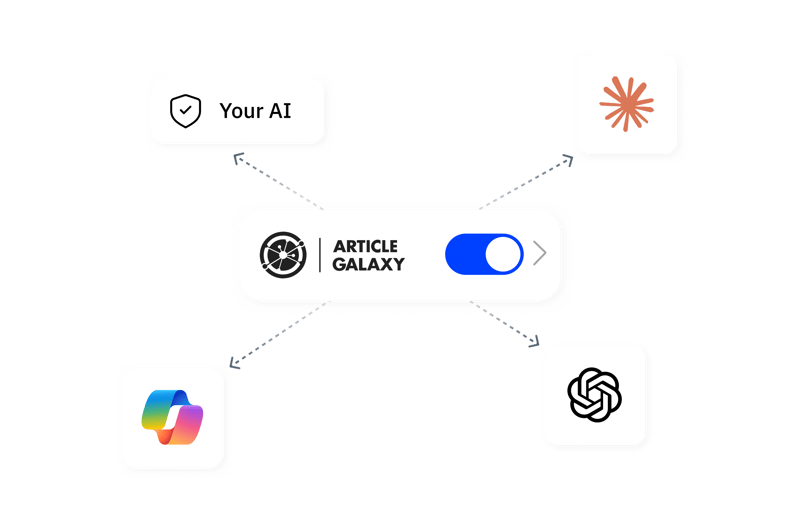
Select the platform you want to connect and follow the steps below.
ChatGPT
Step 1: Configure
In ChatGPT, go to Settings > Connected Apps > Add App and enter the following MCP server URL:
https://mcp.articlegalaxy.com/ag/mcp
Requires a paid ChatGPT plan (Plus, Pro, or Team).
Step 2: Authenticate
After adding the app, ChatGPT will prompt you to sign in with your Article Galaxy credentials.
Step 3: Use It
Type @ArticleGalaxy in your prompt to activate the connector. For best performance, reconnect before each session by clicking the ··· menu next to Article Galaxy and selecting Reconnect.
Example: @ArticleGalaxy check if I have access to DOI 10.1038/s41586-020-2012-7
Troubleshooting
If Article Galaxy is not responding, ChatGPT may have silently disconnected the tool between sessions. Click the ··· menu next to Article Galaxy and select Reconnect to restore the connection.
Claude.ai
Step 1: Configure
- In Claude.ai, click the Search and tools icon (magnifying glass) in the chat input area, then select Add MCP Server — or go to Settings > Integrations.
- Add the following URL:
https://mcp.articlegalaxy.com/ag/mcp
Step 2: Authenticate
Claude will redirect you to sign in with your Article Galaxy credentials via OAuth.
Step 3: Use It
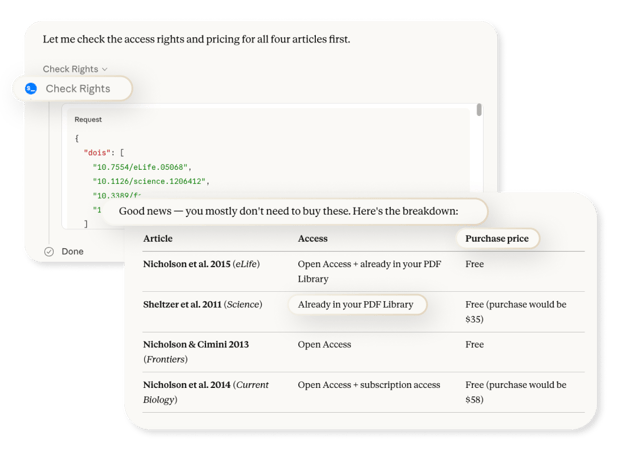
Article Galaxy tools are automatically available in your conversations once connected. Just ask Claude to search for articles, check access rights, or place orders.
Example: Search for recent papers on CRISPR gene editing and check what access I have
Claude Desktop
Step 1: Configure
- Open your Claude Desktop configuration file:
- macOS:
~/Library/Application Support/Claude/claude_desktop_config.json
- Windows:
%APPDATA%\Claude\claude_desktop_config.json
- Add the following to the
mcpServers section:
{
  "mcpServers": {
    "article-galaxy": {
      "command": "npx",
      "args": [
        "-y",
        "mcp-remote",
        "https://mcp.articlegalaxy.com/ag/mcp"
      ]
    }
  }
}
Step 2: Authenticate
Restart Claude Desktop. On first use, a browser window will open for you to sign in with your Article Galaxy credentials.
Step 3: Use It
Article Galaxy tools will appear in your Claude Desktop conversations automatically.
Claude Code
Step 1: Configure
Run the following command in your terminal:
claude mcp add article-galaxy -- npx -y mcp-remote https://mcp.articlegalaxy.com/ag/mcp
Step 2: Authenticate
On first use, a browser window will open for you to sign in with your Article Galaxy credentials.
Step 3: Use It
Article Galaxy tools are now available in your Claude Code sessions.
Microsoft Copilot
Step 1: Configure
Open the apps or plugins panel (in Microsoft 365 Copilot, select the plugin icon in the message box, or Apps in the left rail) and search for Article Galaxy.
If it is not listed, open the Microsoft marketplace listing below and select Get it now. On a company account, your Microsoft 365 administrator may need to approve it in the Microsoft 365 admin center.
Open the Microsoft Marketplace listing
Step 2: Authenticate
Sign in with your Article Galaxy credentials when prompted.
Step 3: Use It
Article Galaxy tools will appear in your Microsoft Copilot conversations automatically.
Other MCP-Compatible Clients
Step 1: Configure
Any MCP-compatible client can connect to Article Galaxy using the server URL below:
https://mcp.articlegalaxy.com/ag/mcp
Step 2: Authenticate
Authentication is handled via OAuth. When you connect, you will be prompted to sign in with your Article Galaxy credentials.